

Setting Up Your Initial ThriveCart Integration
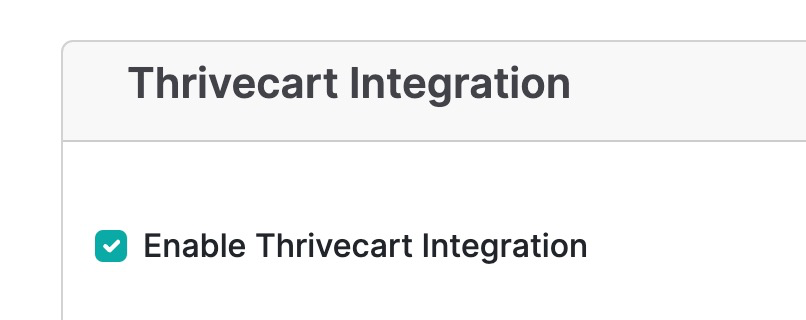
- Enable ThriveCart in PromptForm.
- Set up ThriveCart Secret Word
- Go to Settings > API & Webhooks > ThriveCart Order Validation. Copy the secret word and paste it in the provided box.
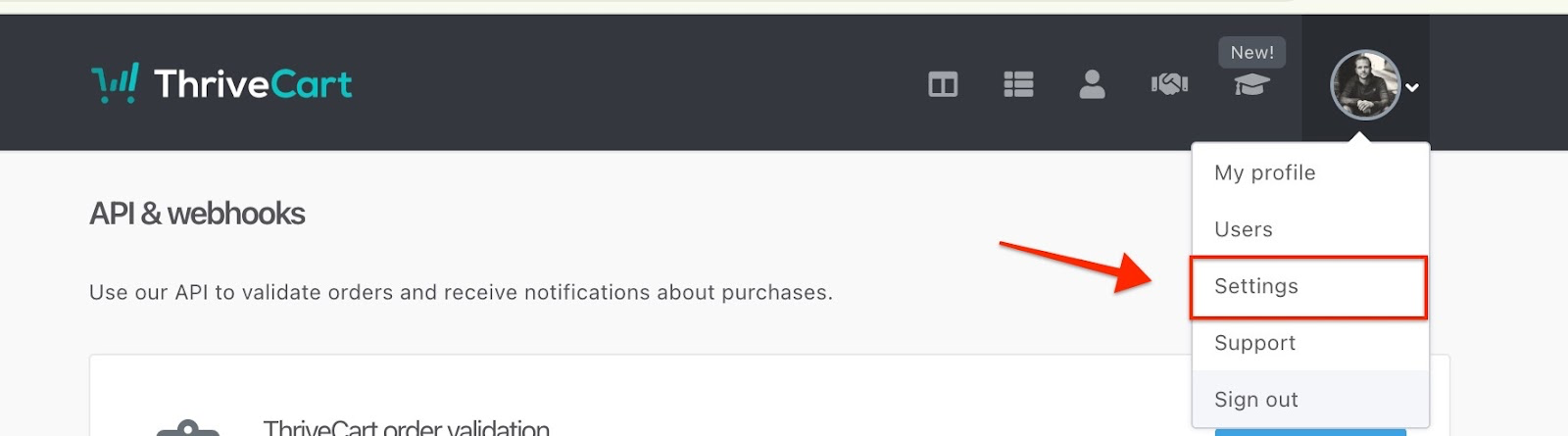
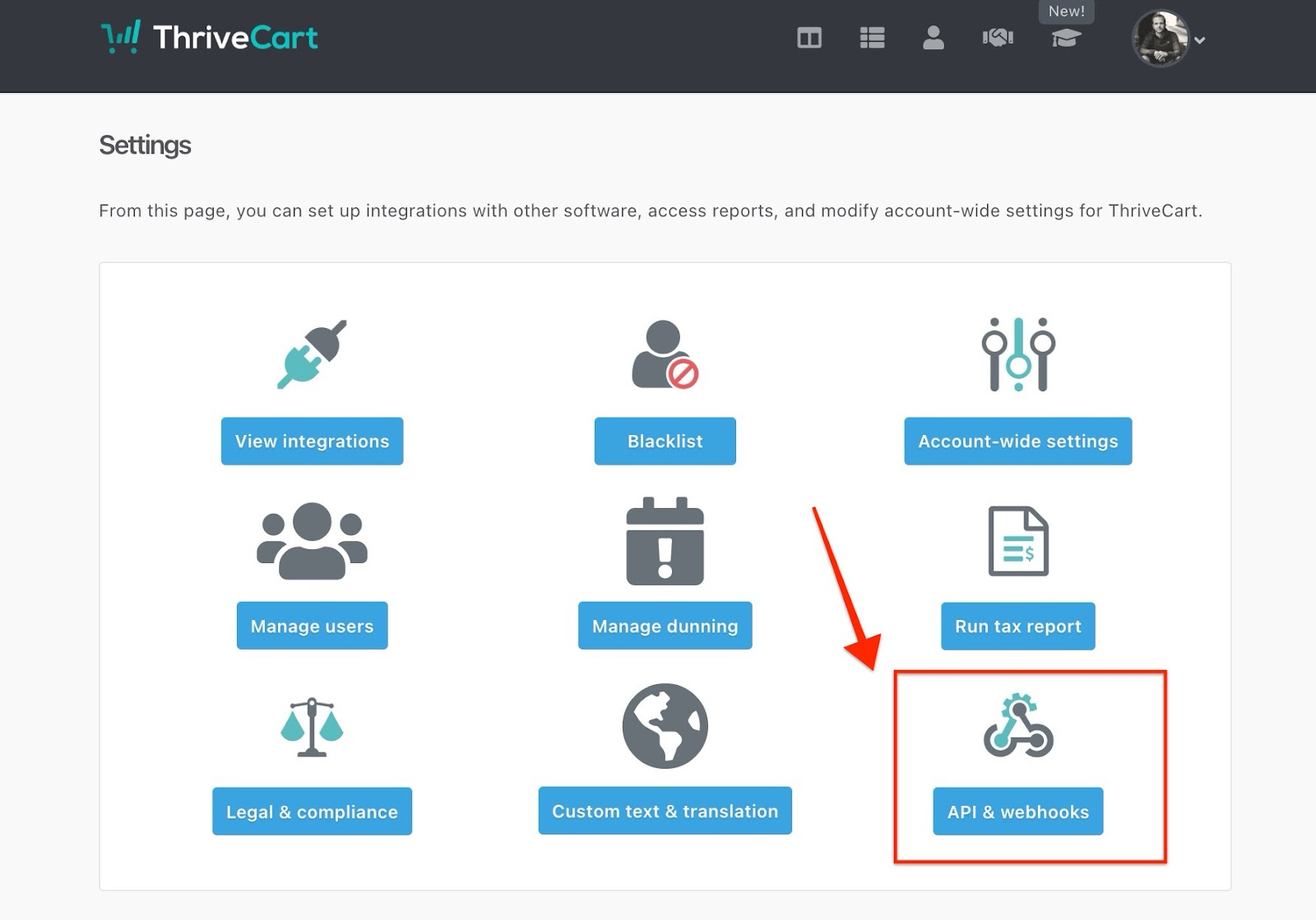
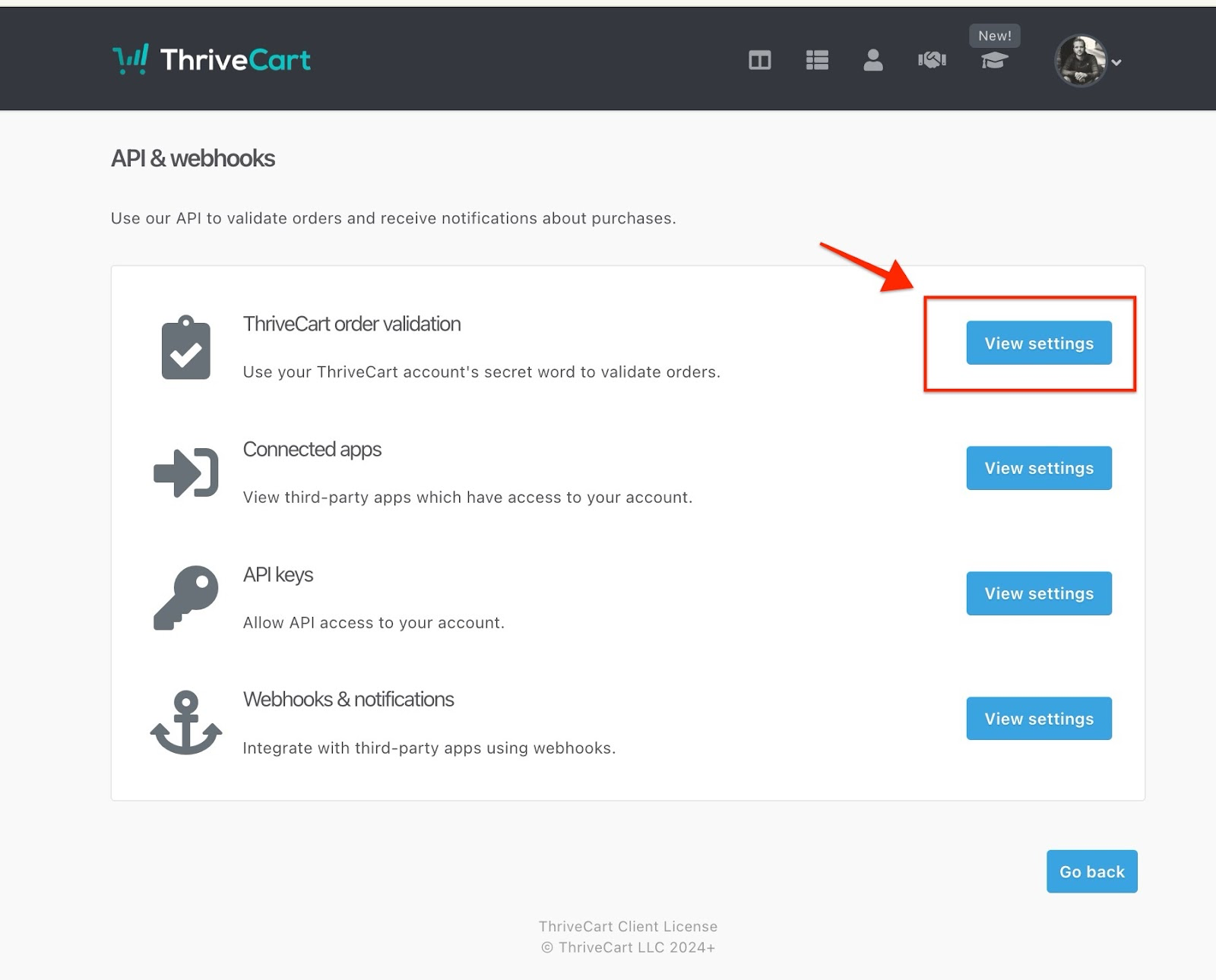
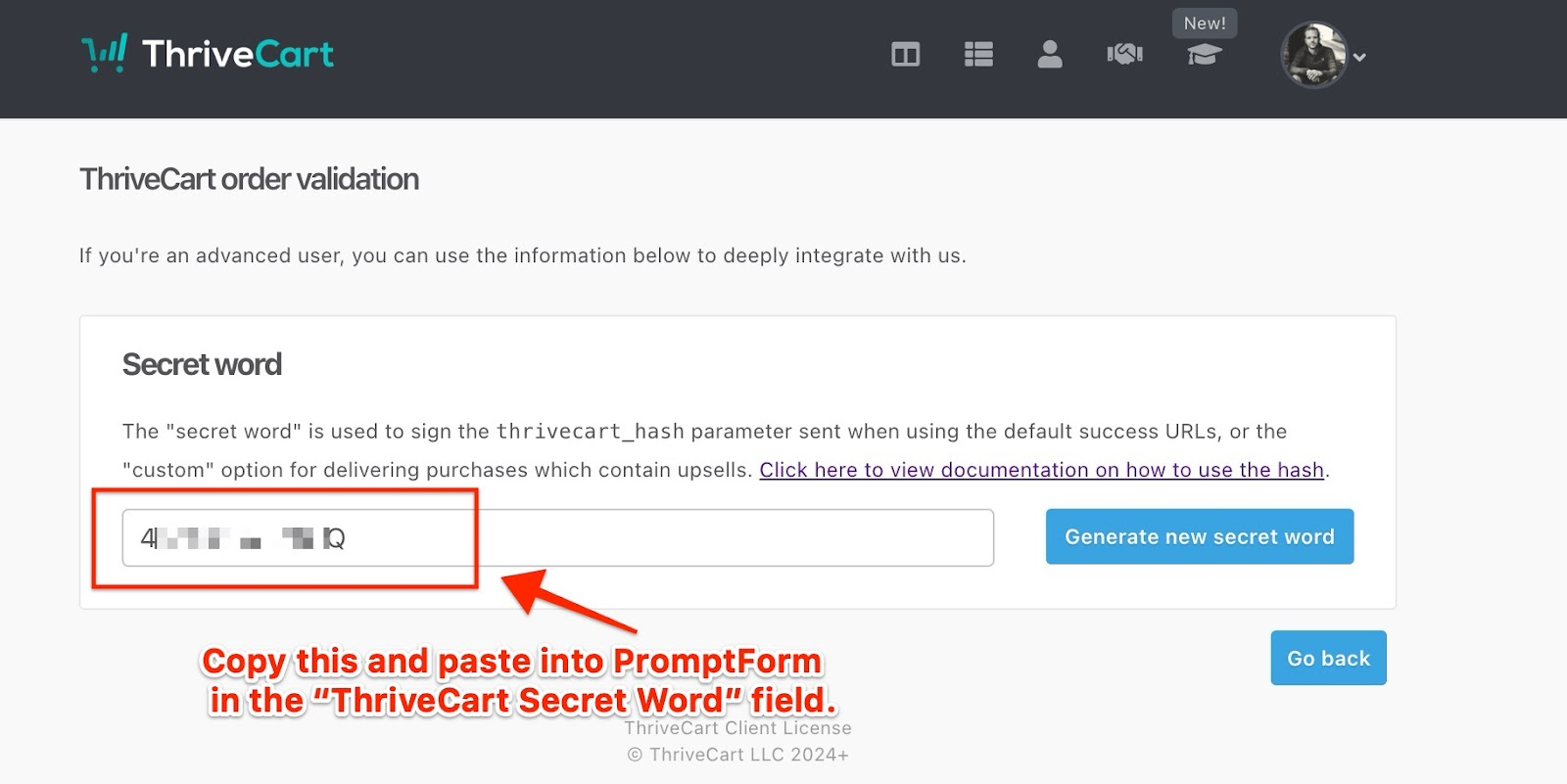
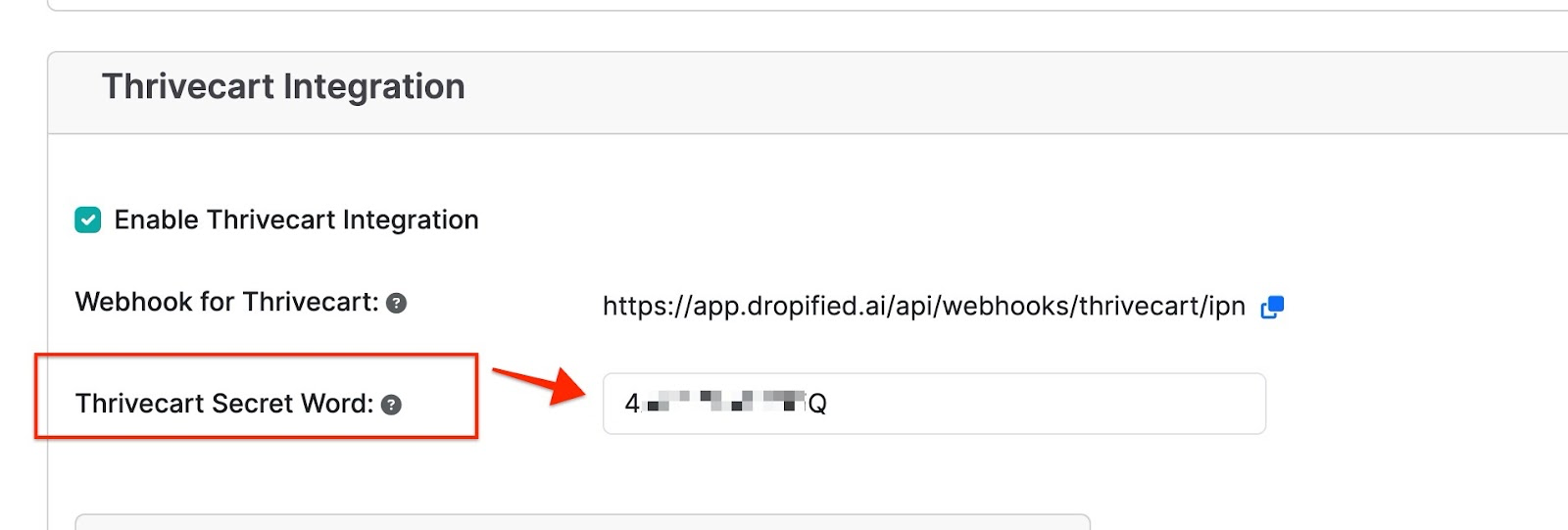
- Go to Settings > API & Webhooks > ThriveCart Order Validation. Copy the secret word and paste it in the provided box.
- Set up Webhook URL in ThriveCart
- Go to Settings > API & Webhooks > Webhooks & Notifications. Create a new Webhook. Name it whatever you’d like and paste in the provided Webhook from the PromptForm side into the Webhook field in ThriveCart. Make sure to enable the option for “Receive Results as JSON” in ThriveCart.
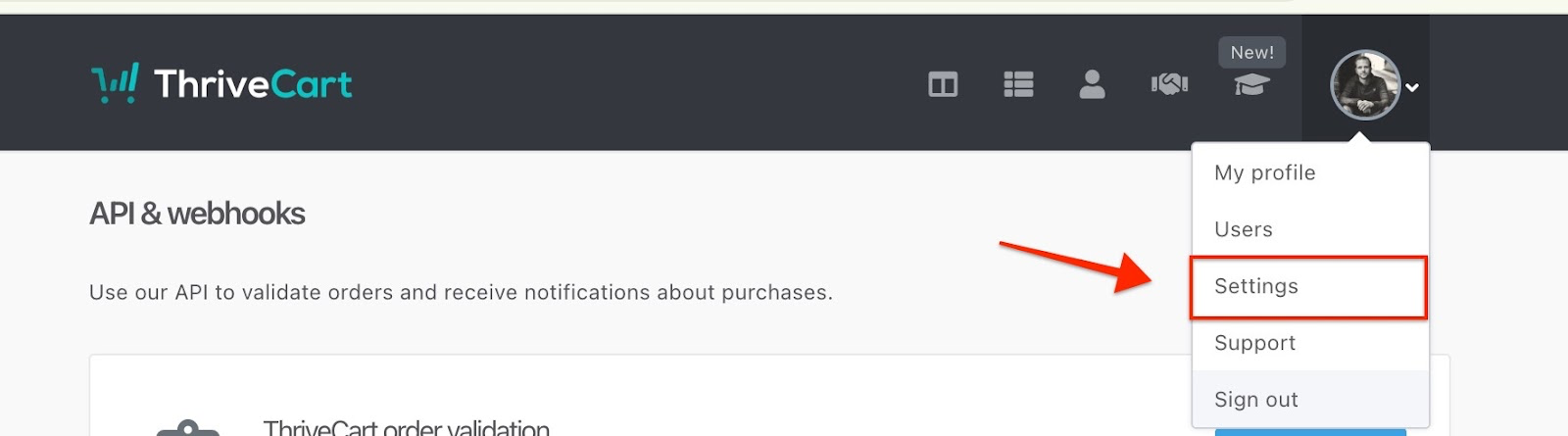
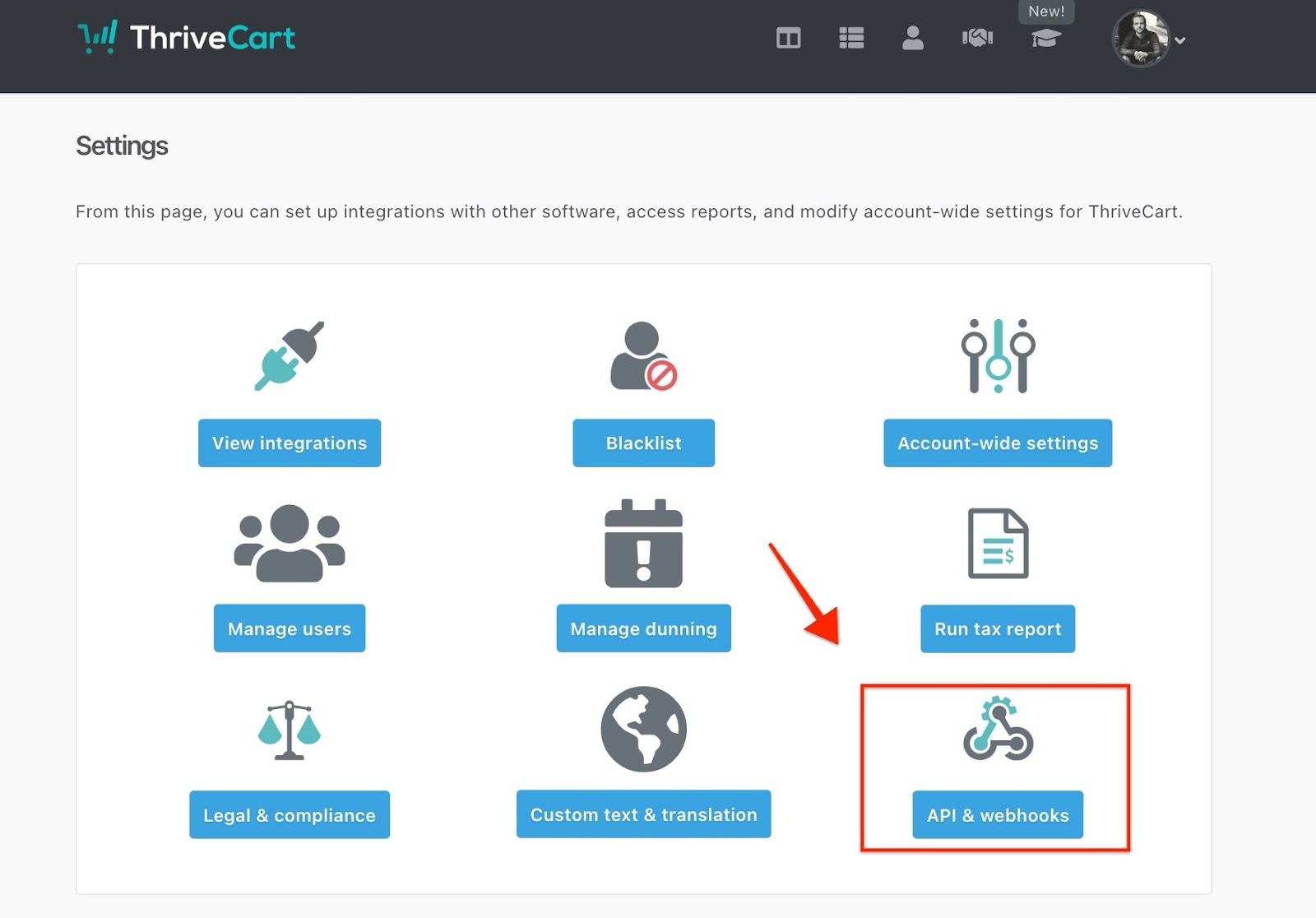
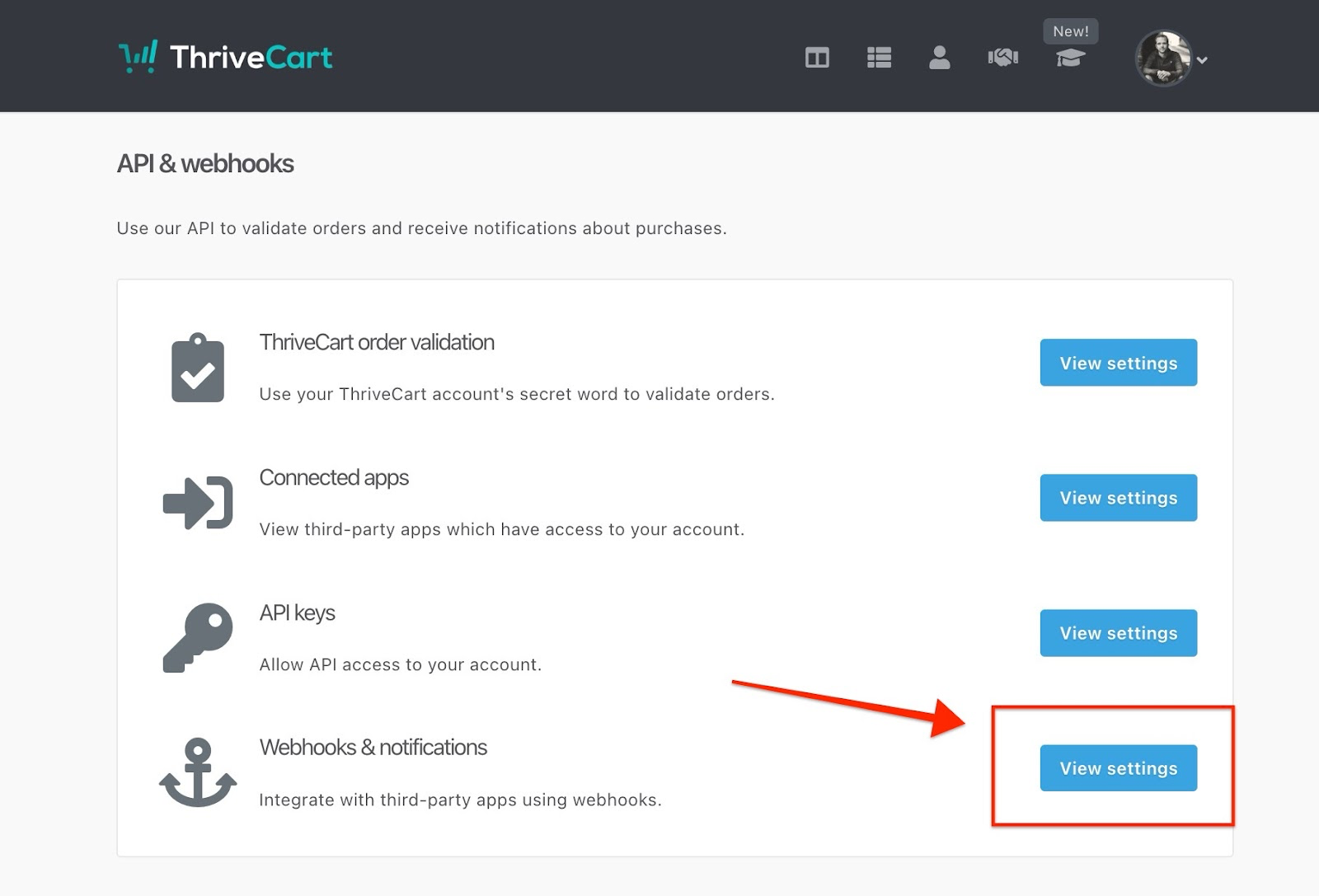
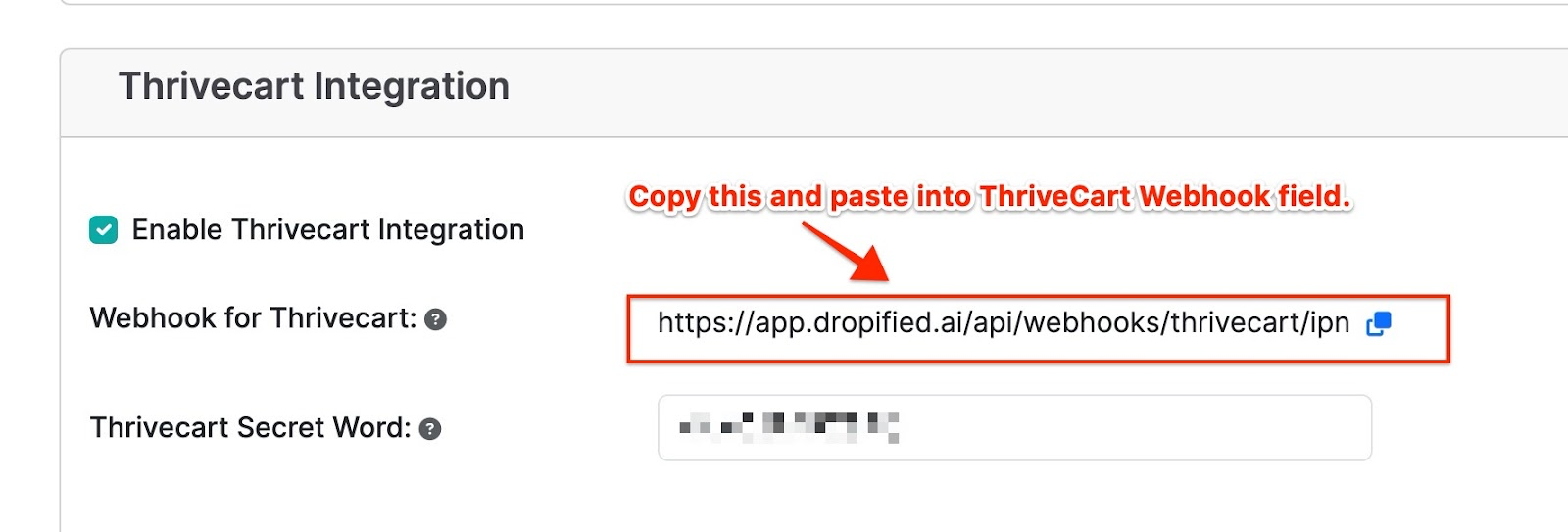
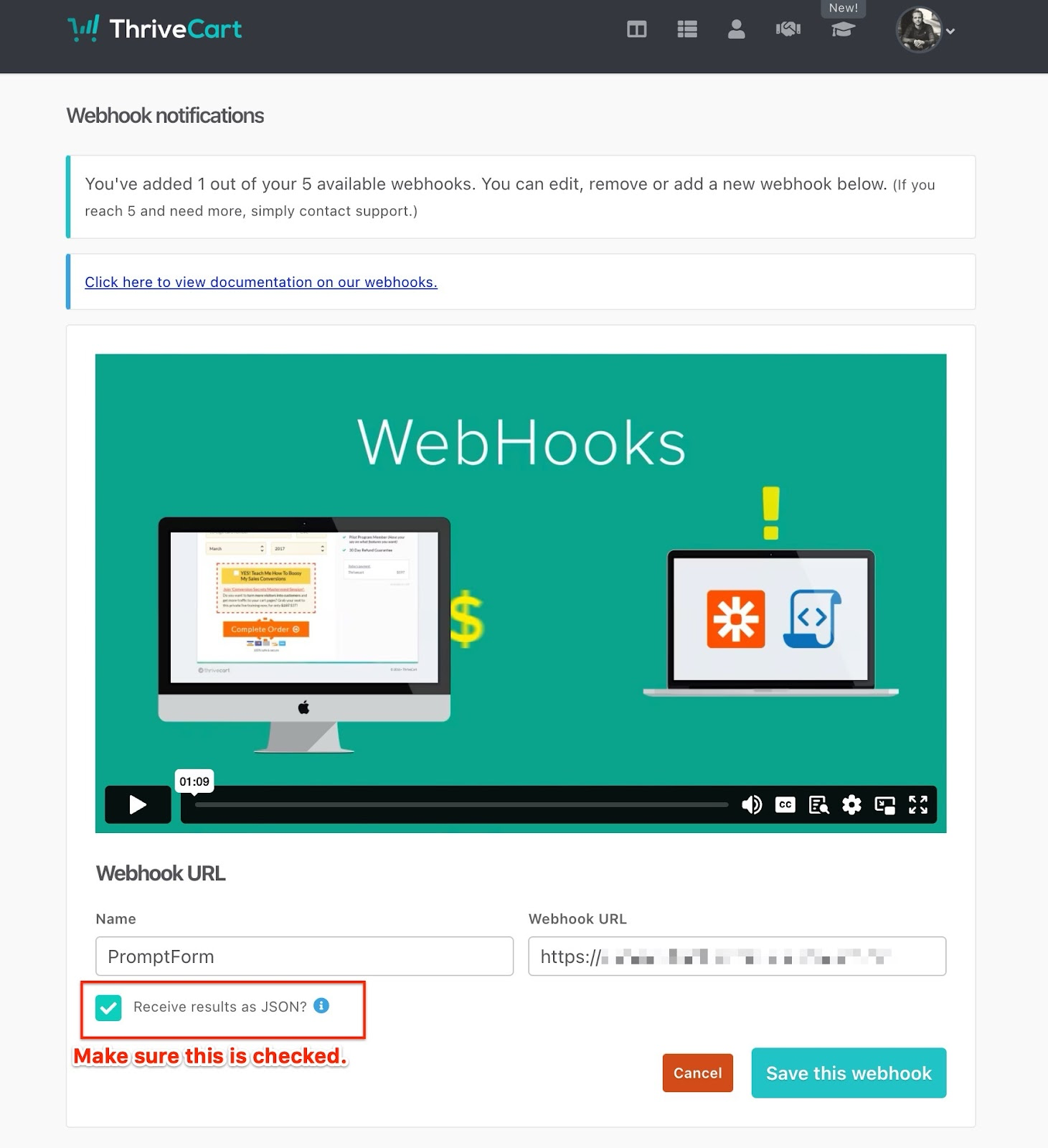
- Go to Settings > API & Webhooks > Webhooks & Notifications. Create a new Webhook. Name it whatever you’d like and paste in the provided Webhook from the PromptForm side into the Webhook field in ThriveCart. Make sure to enable the option for “Receive Results as JSON” in ThriveCart.
Mapping Your ThriveCart Product To Your PromptForm Plan
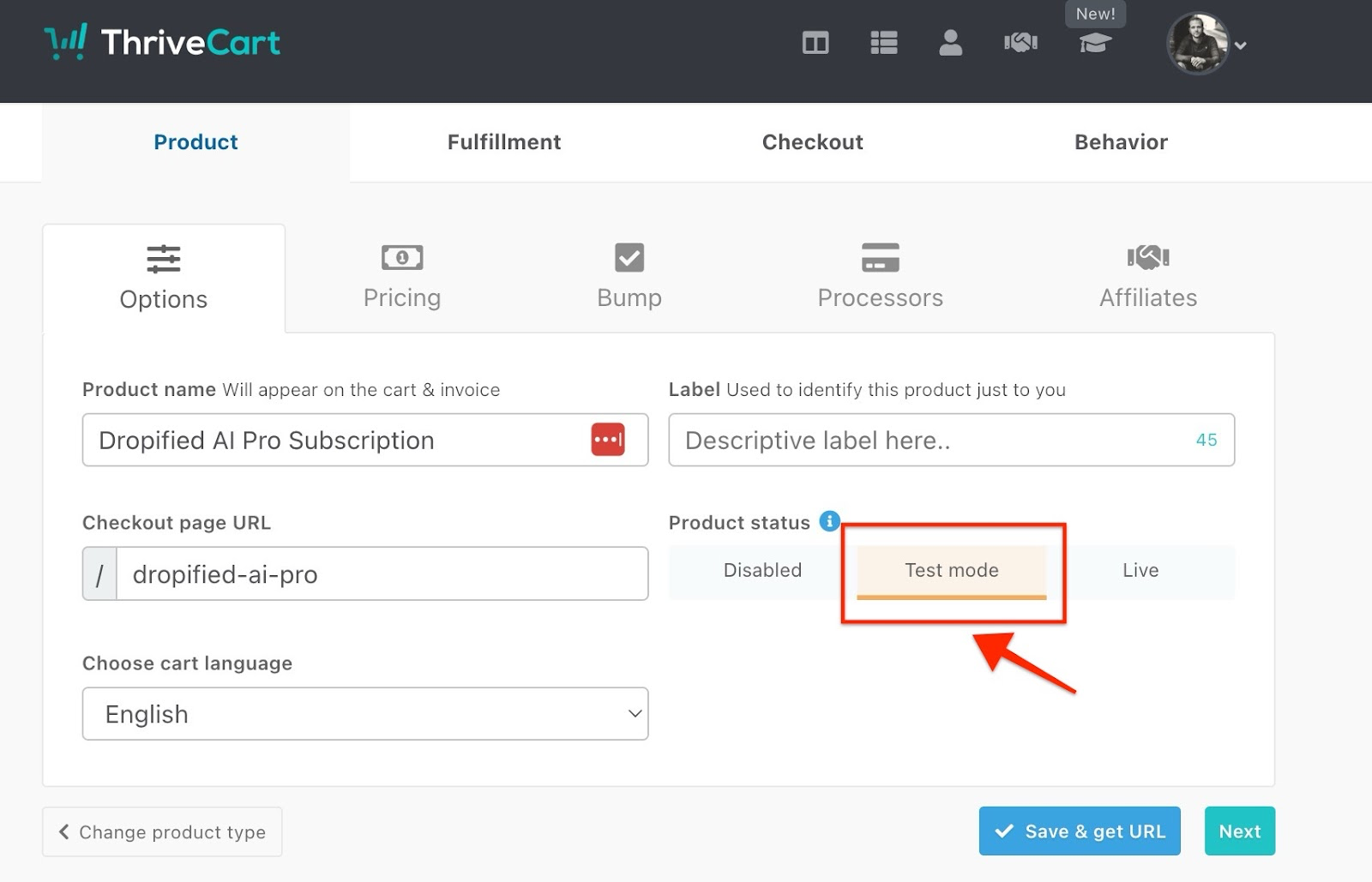
- Set your ThriveCart product to TEST mode.
- For checkout page, click Contact Information area and enable Customer Name (first + last) if you want the customer’s name to pass through to PromptForm.
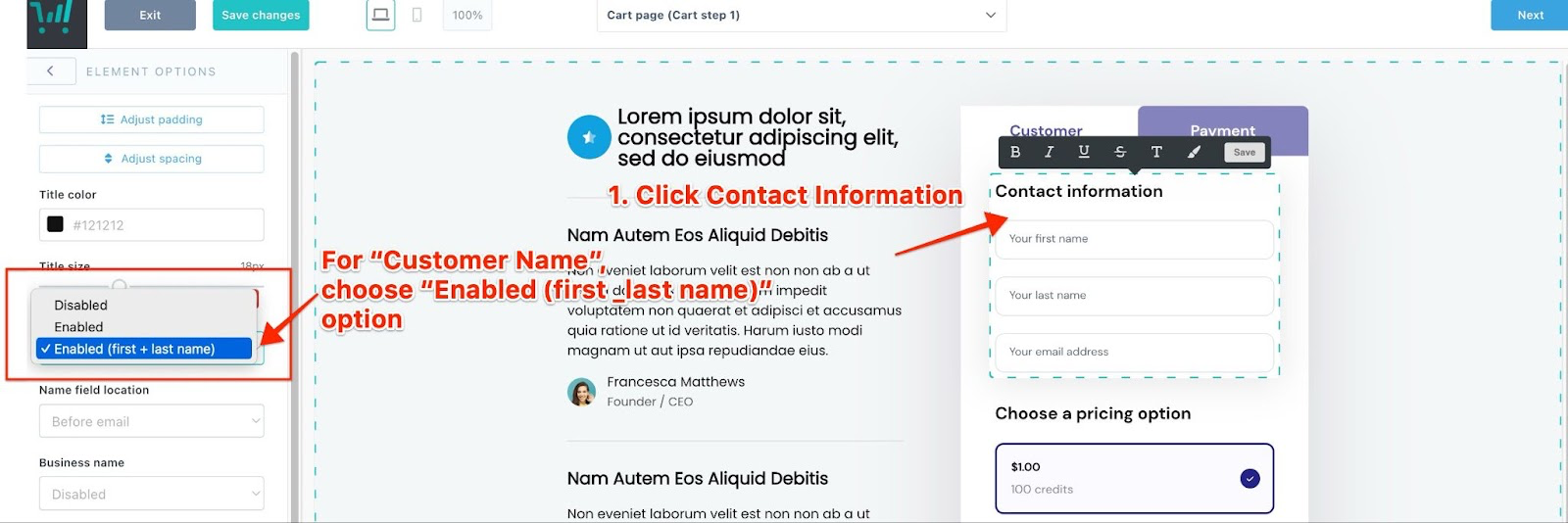
- For checkout page, click Contact Information area and enable Customer Name (first + last) if you want the customer’s name to pass through to PromptForm.
- Map ThriveCart Product to PromptForm Plan
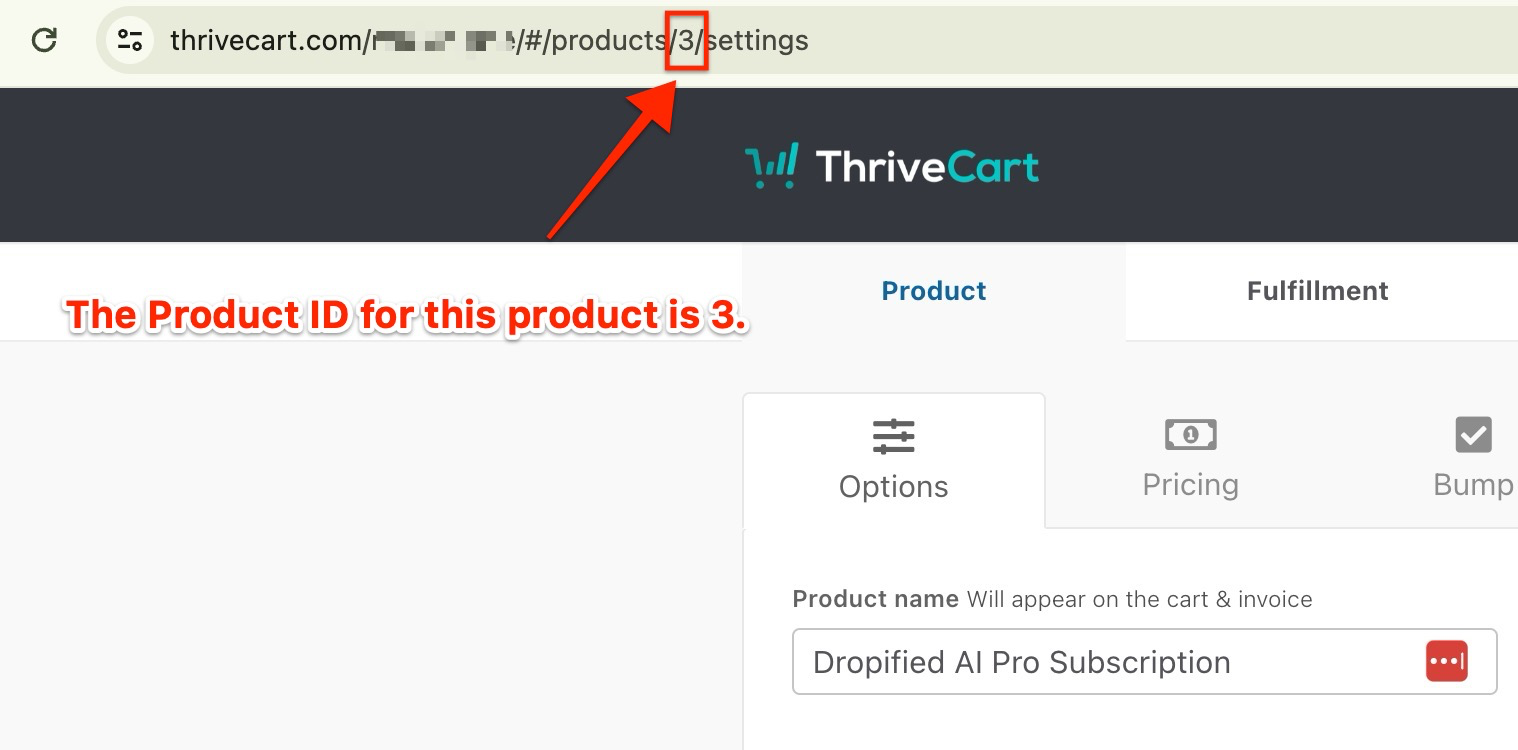
- Find Product ID. In ThriveCart, edit the product and look for the number located in the URL.
- You’ll take that product id number and put it into the following format when adding to PromptForm.
—> product-(insert product id here)
—-> product-3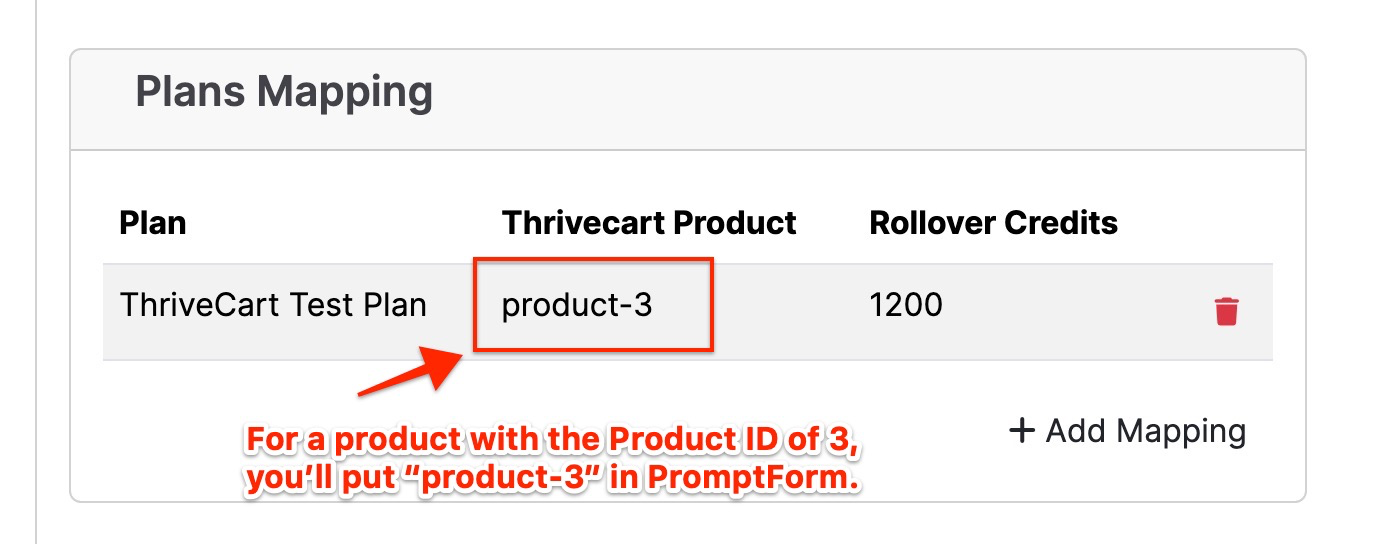
- Find Product ID. In ThriveCart, edit the product and look for the number located in the URL.
Sending Setup Link To Users
Set up Registration Email to be sent to users.
You will need to set up sending the invitation email from your side with this info:
For the link for users to set up their account, use this format:
Format: https://yourcustomdomain.com/user/setup?email=customer@email.com
Example: https://app.dropified.ai/user/setup?email=chasebowers%2Bthrive3%40gmail.com
Setting Up Trial Credits
- In ThriveCart, Go to Products, and click “Edit” for the product you want to edit.
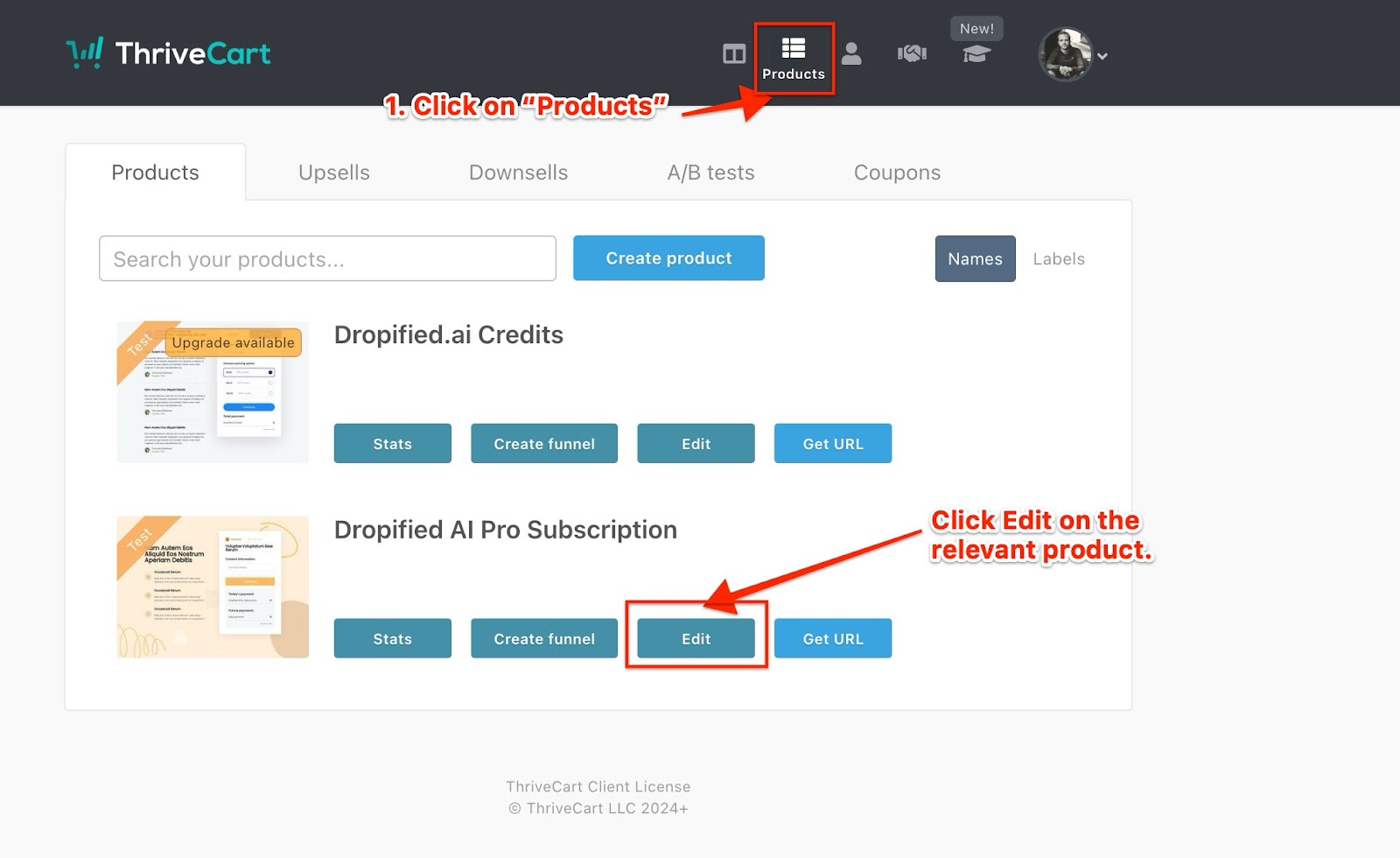
- Click on the Pricing tab and click Edit on the price you’d like to setup the trial for.
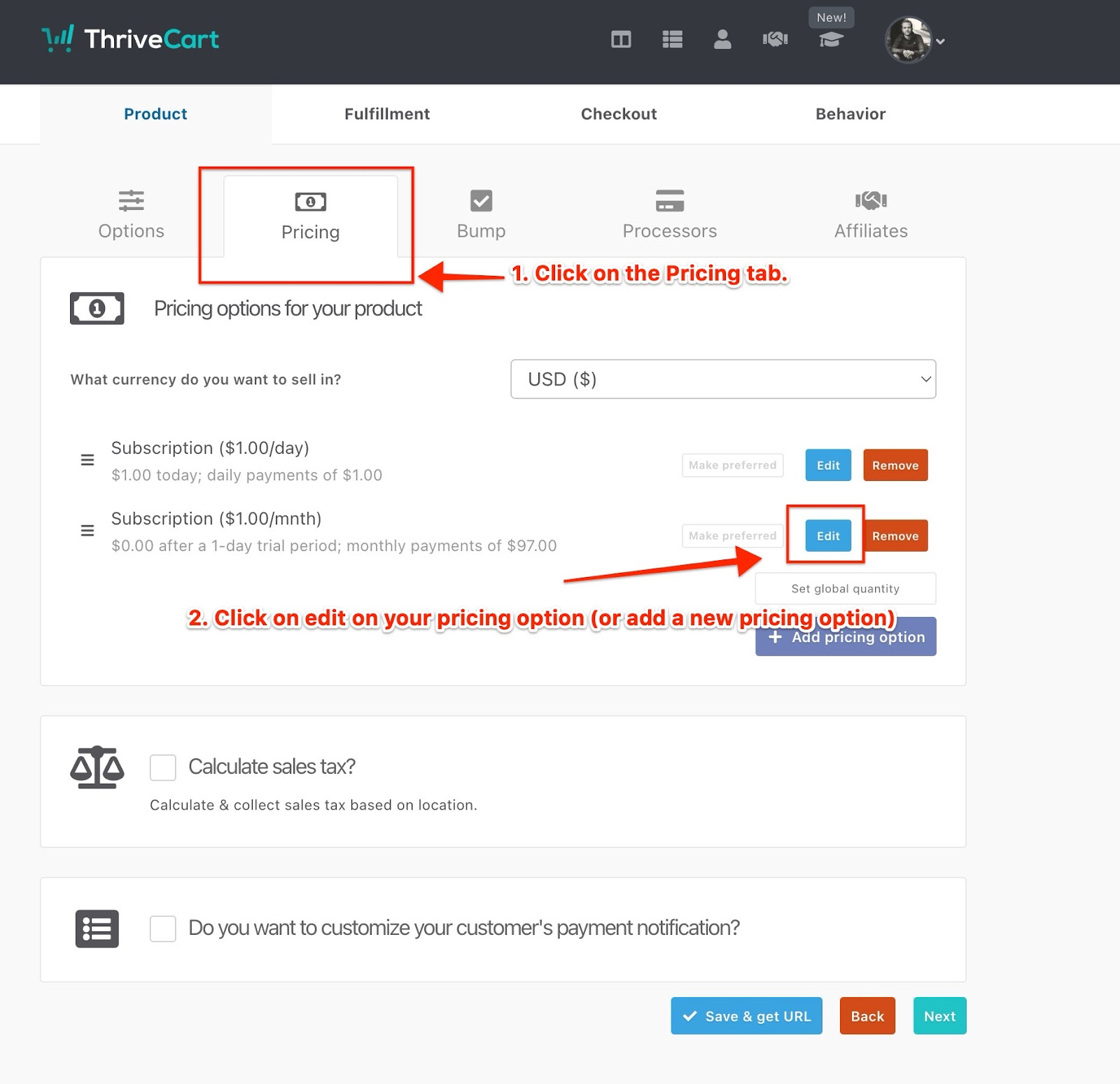
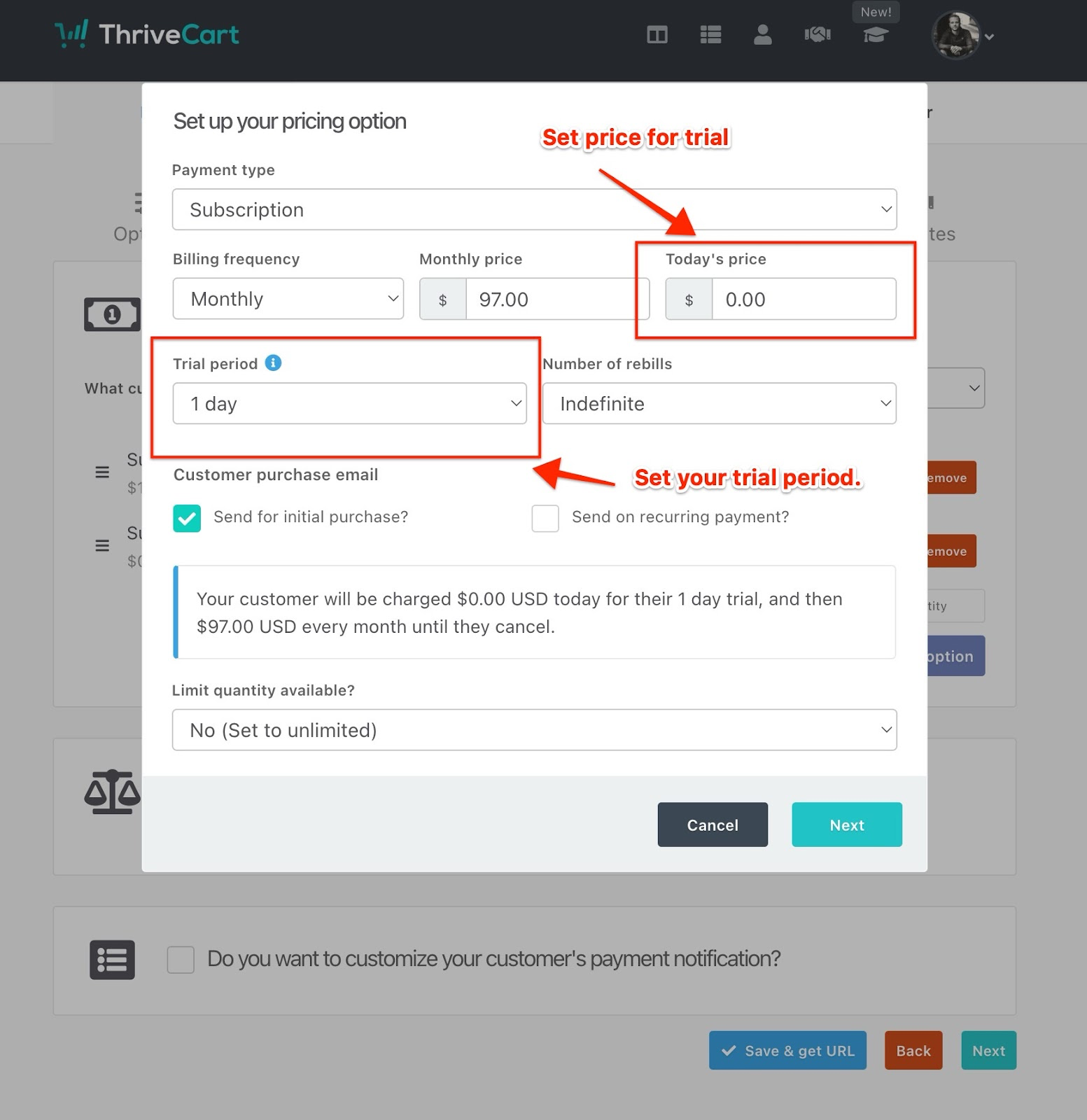
- Set your trial length, trial price and save.
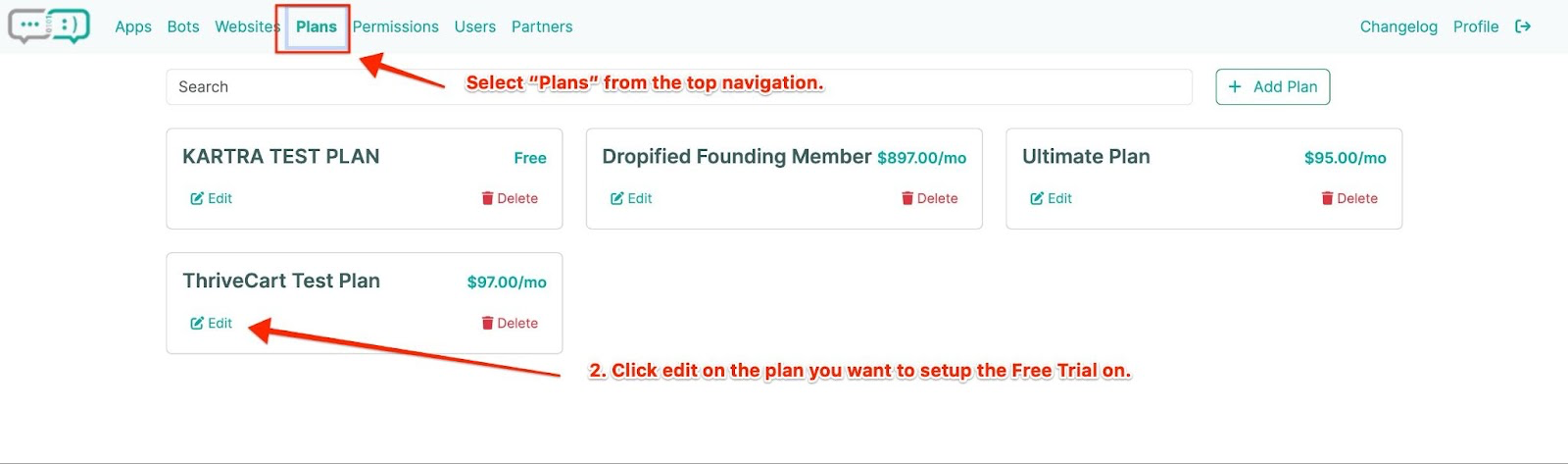
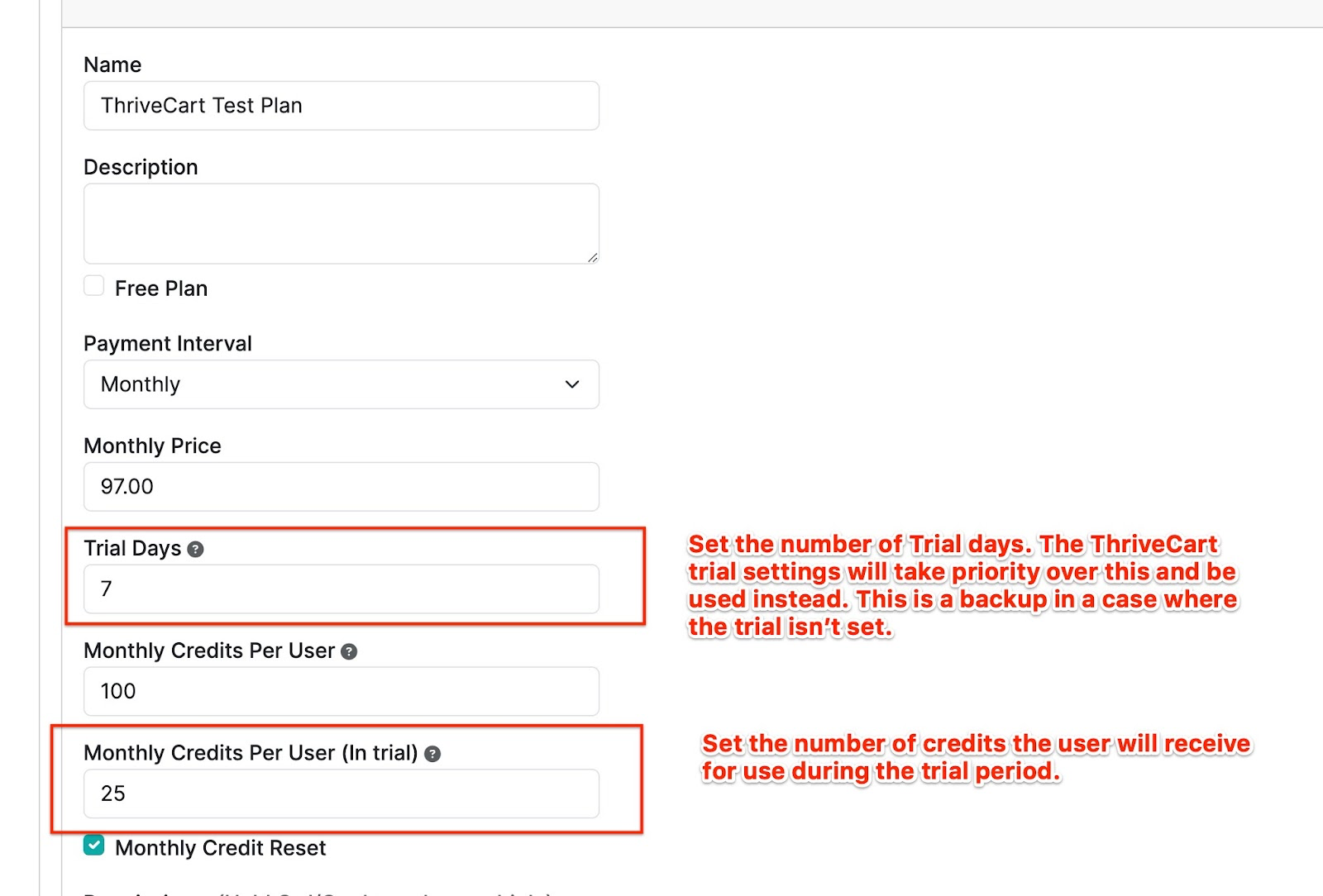
- Next, in PromptForm, set up how many credits user will have to use during their trial period. Click on Plans from the top navigation, click Edit for the plan you want.
- In the field called “Monthly Credits Per User (In trial)”, set the number of credits. Click Save.
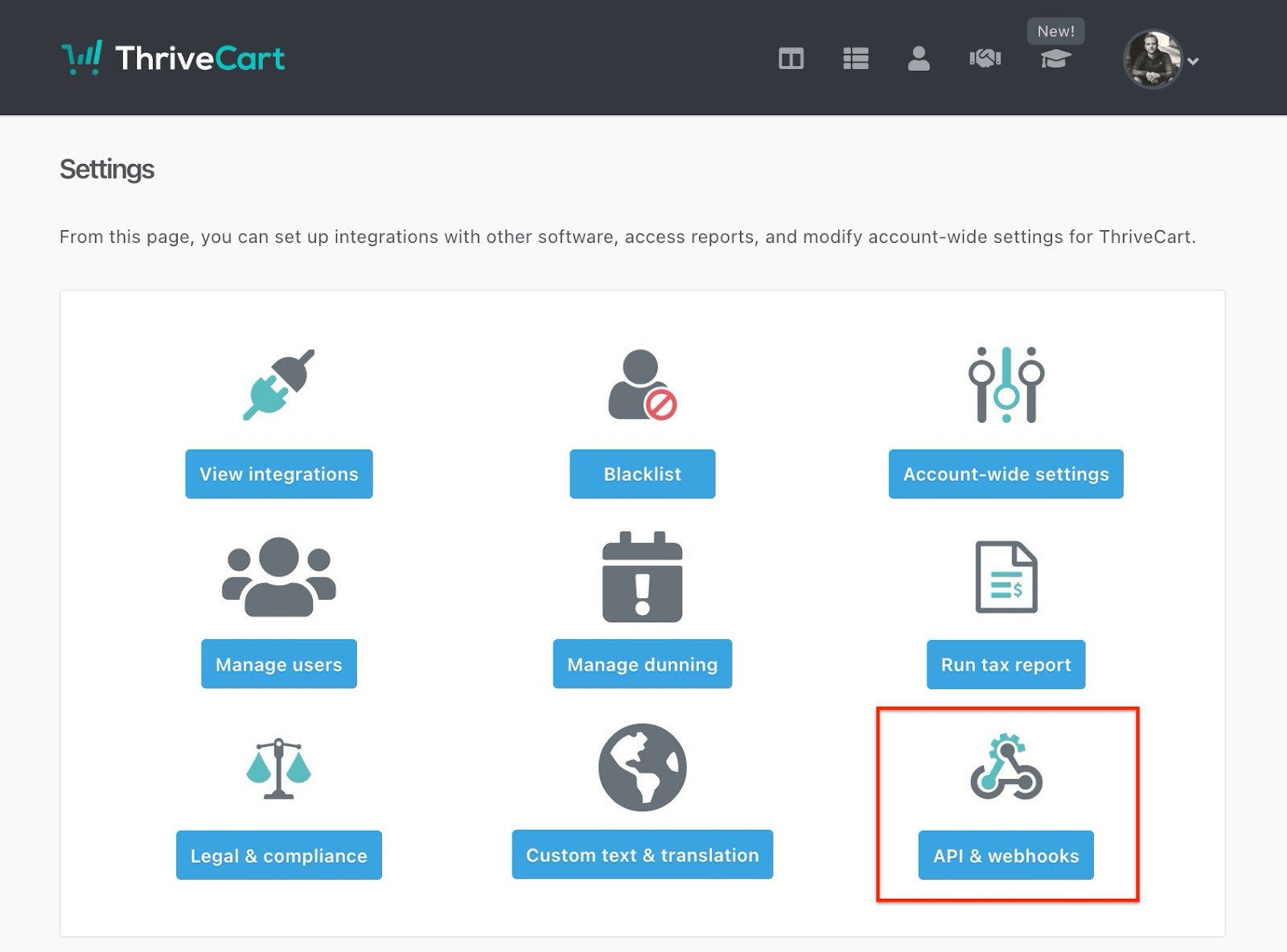
- Now, let’s add your ThriveCart API key to PromptForm. In ThriveCart, go to Settings, click on the API & webhooks option.
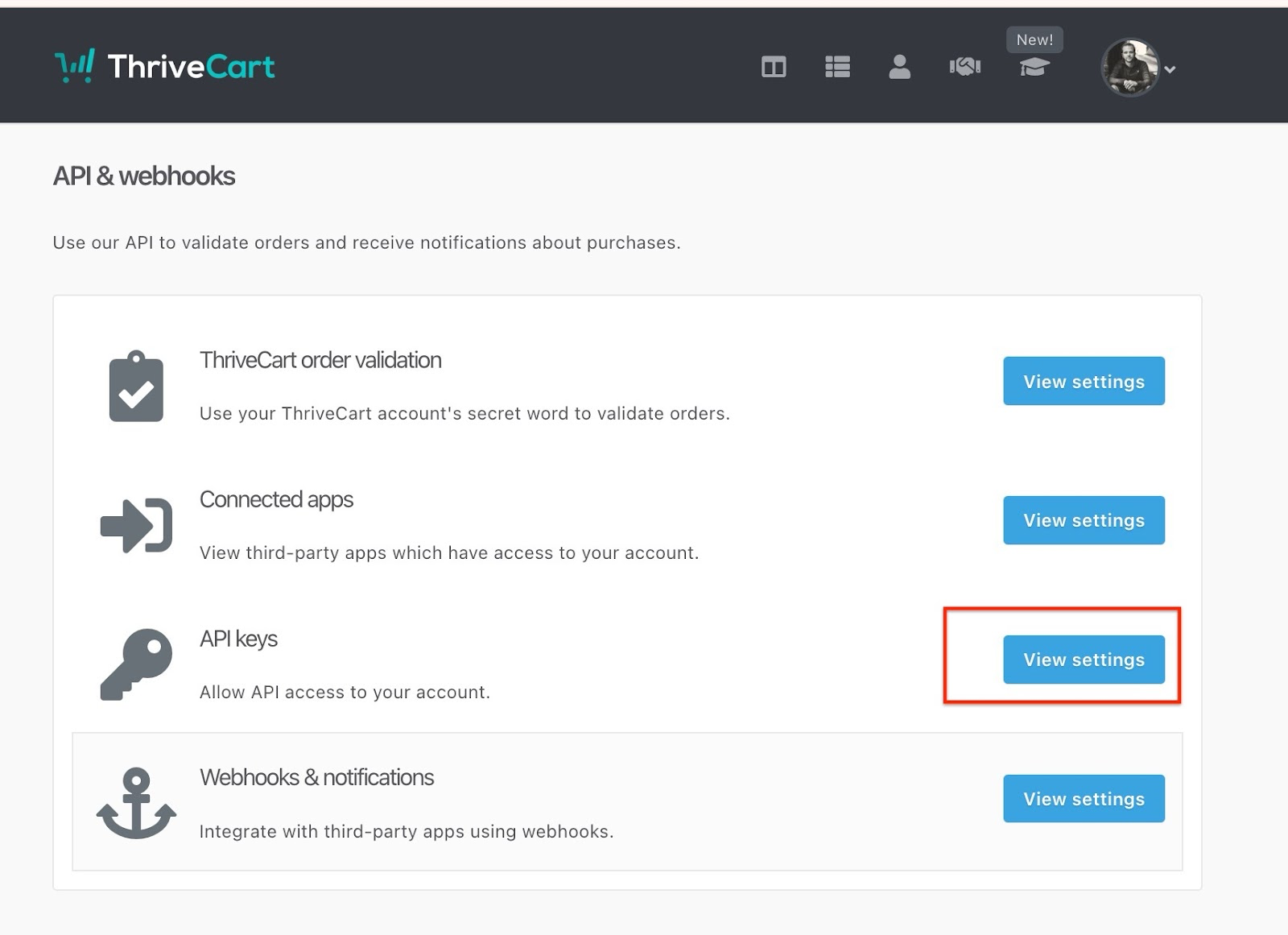
- On the “API keys” option, click “View settings”.
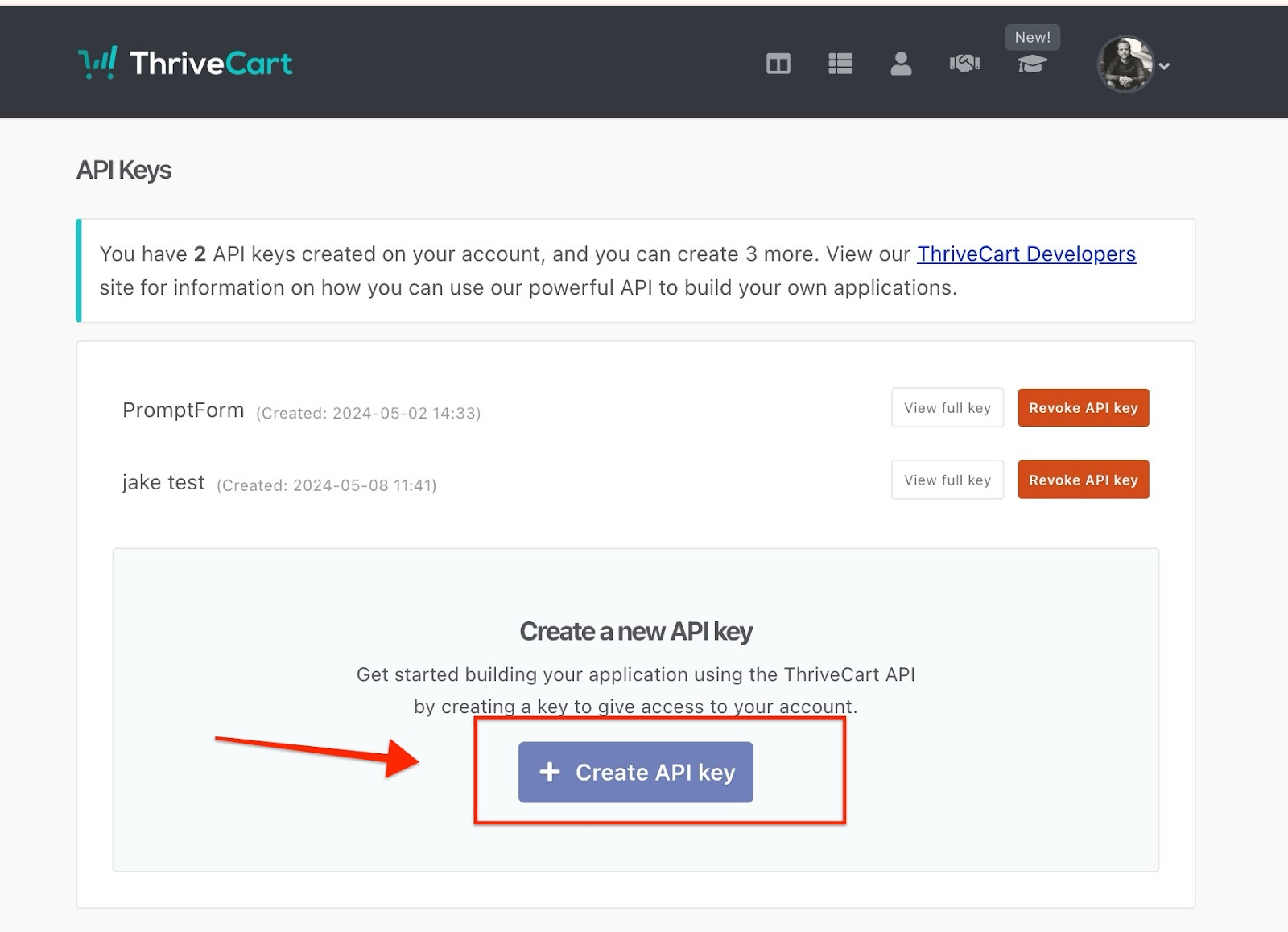
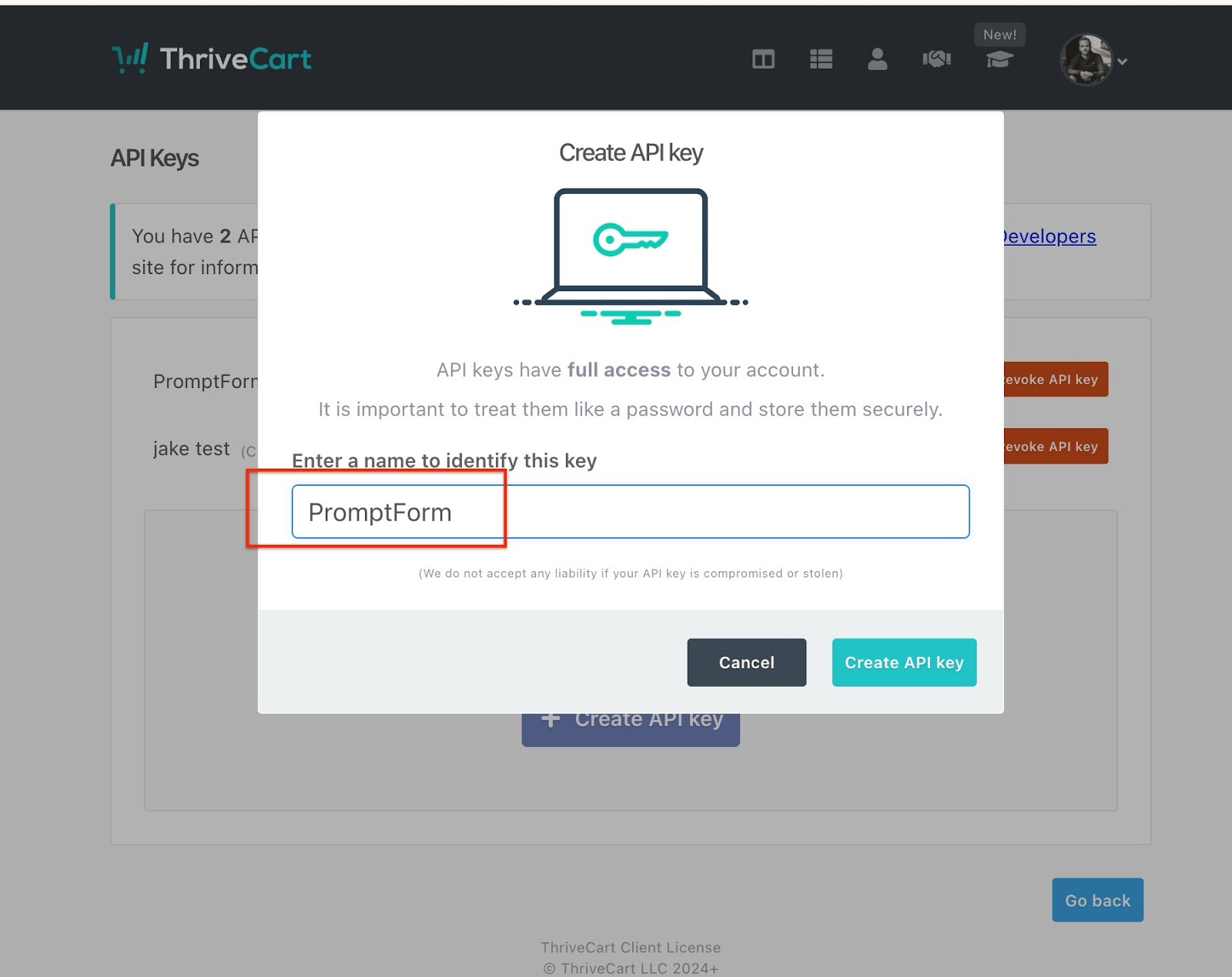
- Click “Create API key”.
- Enter a name for your API key. (It doesn’t matter what it is. It’s for your reference.)
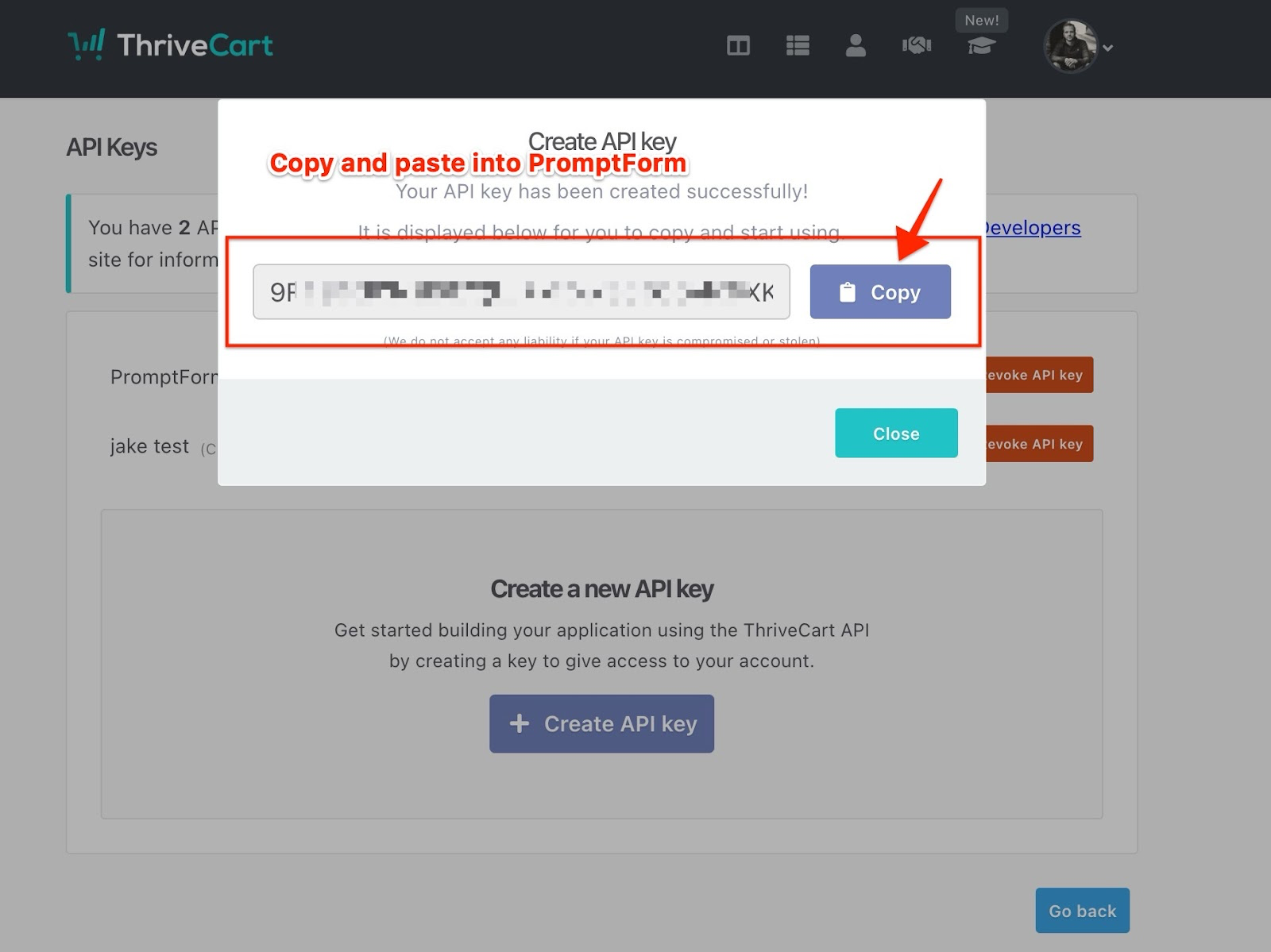
- Copy the API key for pasting in PromptForm.
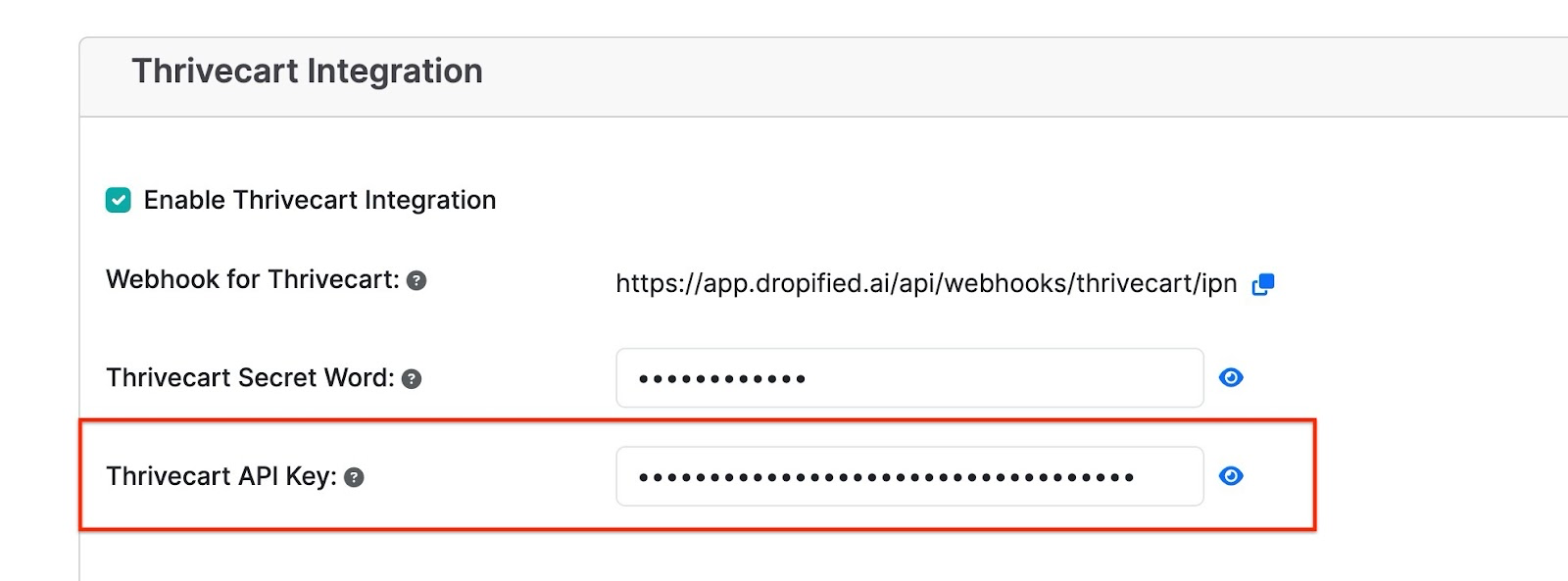
- Click on Websites, Edit Properties. Scroll down to the ThriveCart Integration settings and enter the API Key in the “ThriveCart API Key” section.
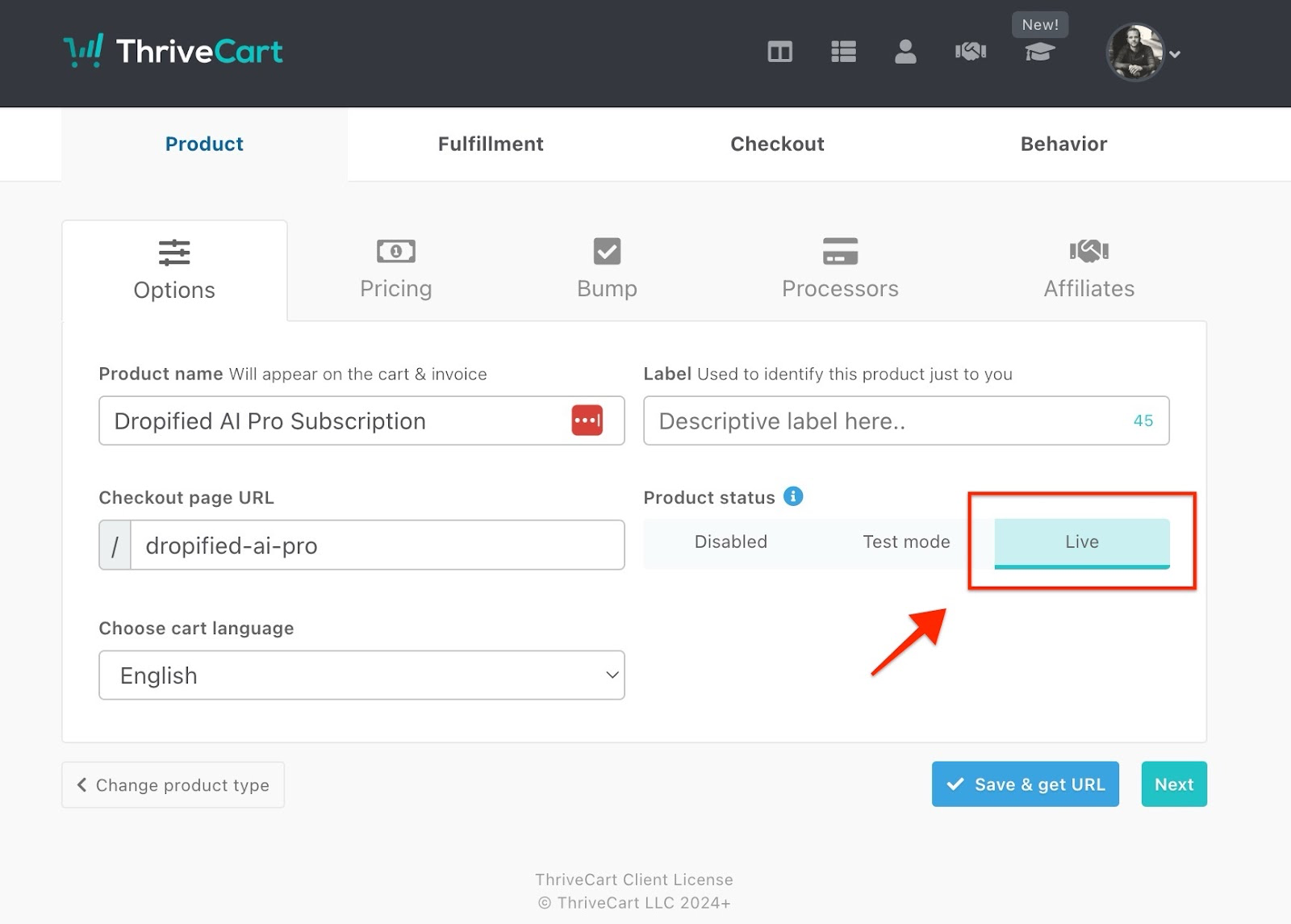
Setting To Live Mode
When you have tested and verified everything is working, set your product to Live mode.