


Overview
The JSON Formatter in Promptform allows you to extract and format specific data from JSON input using JSON Path. This feature is particularly useful when working with structured data where you only need certain information returned. JSON Path works similarly to XPath for XML, enabling you to define the exact elements you want to extract.
This guide will walk you through how to use the JSON Formatter effectively, including examples and common use cases.
What is JSON Path?
JSON Path is a syntax that allows you to navigate through and extract specific elements from JSON data. You can test and refine your JSON Path syntax using JSONPath.com, which works similarly to how the JSON Formatter in Promptform operates.
Basic JSON Path Syntax
$– Refers to the root object..– Accesses child elements.[]– Accesses elements in an array.*– Wildcard that selects all elements.
How the JSON Formatter Works in Promptform
The JSON Formatter in Promptform behaves the same way as the JSONPath.com tool. You can either:
Input a prompt or JSON directly into the app.
Apply a JSON Path to extract and format only the specific data you need.
Example 1: Basic JSON Path Usage
Let’s say you have a JSON input like this:
{
  "store": {
    "book": [
      { "title": "Book 1", "price": 10 },
      { "title": "Book 2", "price": 15 }
    ],
    "bicycle": { "color": "red", "price": 99 }
  }
}
To extract only the titles of the books, you can use the following JSON Path:
$.store.book[*].title
✅ Result:
[
  "Book 1",
  "Book 2"
]
Step-by-Step Instructions
Step 1: Open the JSON Formatter
Navigate to the App Editor in Promptform.
Click on the Prompts tab.
Click Add New Prompt.
Select the JSON Format from the Model dropdown menu.
Step 2: Input Your JSON Data
You can either:
Add a JSON input via prompt.
Copy and paste your JSON data directly.
Step 3: Define Your JSON Path
Use a valid JSON Path to target the desired data.
Click Submit to see the results.
Step 4: Review and Adjust
If the output doesn’t match your expectations, refine the JSON Path using JSONPath.com as a testing ground.
Example 2: Extracting Data from Reddit JSON
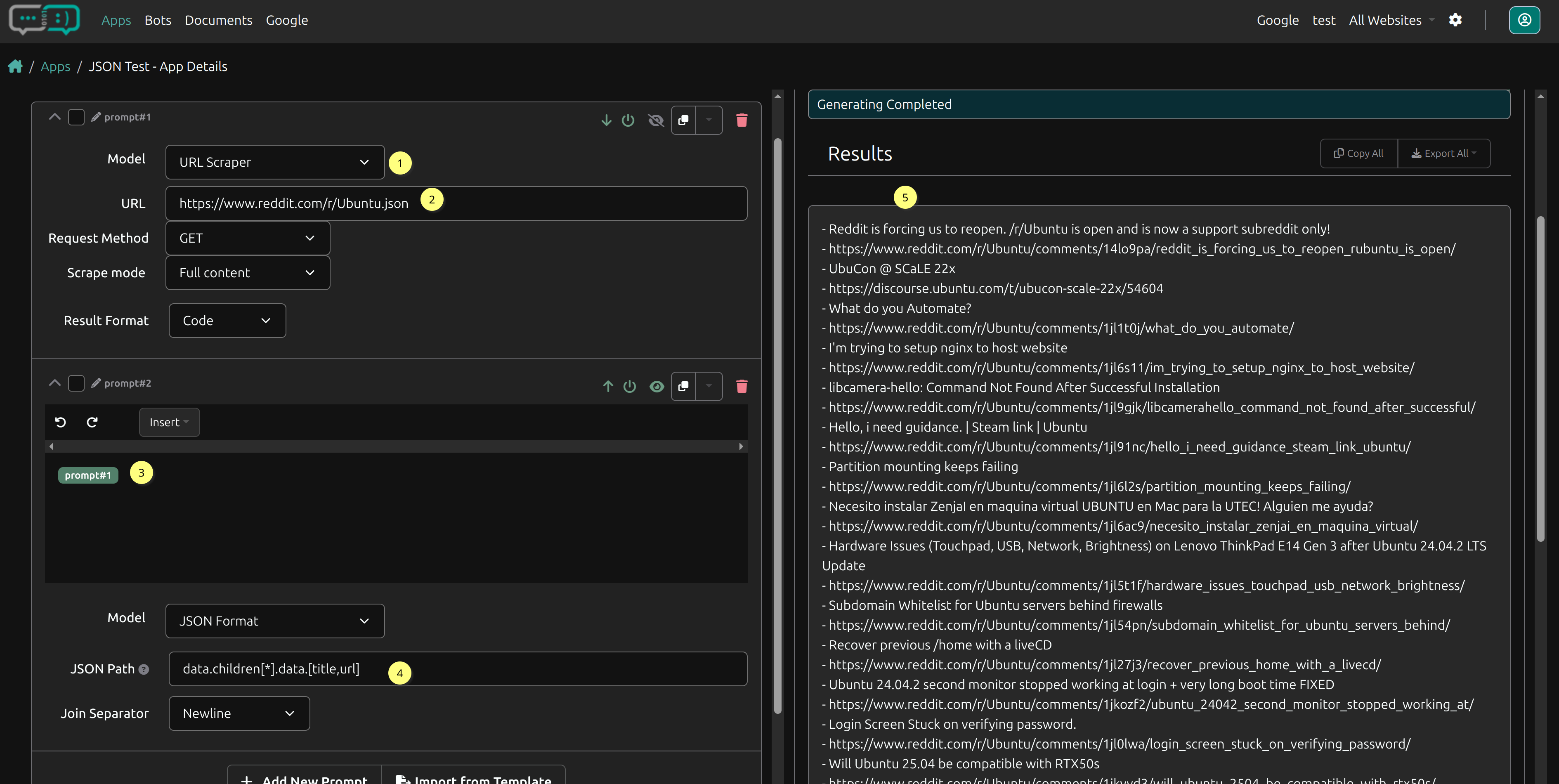
In this example, JSON data is retrieved from Reddit via the URL Scraper model, and the goal is to extract only the title and URL of each post.
JSON Input
- Scrape Reddit.
- In the Model dropdown, select URL Scraper.
- In the URLfield, type the reddit address.
- Add this URL: https://www.reddit.com/r/Ubuntu.json
- Use the Get method to scrape the full content into a code format.
- Use the JSON Formatter.
- Click Add New Prompt.
- Select JSON Format from the Model dropdown.
- With the cursor in the prompt field, click Insert and select the previous URL Scraper prompt to add it.
- Apply the JSON Path.
$.data.children[*].data.[title, url]
- Click Submit to see the results.
✅ Result:
Returns a list of titles and URLs from the Reddit posts.
Screenshots of the Process:
FAQs
1. What happens if my JSON Path is incorrect?
If your JSON Path is invalid or does not match the structure of your data, no results will be returned. Double-check your syntax or test it on JSONPath.com before applying it.
2. Can I extract nested data with JSON Path?
Yes, JSON Path can access deeply nested elements. For example:
$.store.book[0].price
This will return the price of the first book.
3. Is there a limit to the size of the JSON input?
While there’s no strict limit, processing large JSON data may slow down results. Optimize by extracting only necessary data.
Troubleshooting Tips
Validate your JSON structure before applying JSON Path.
Start with a basic path and gradually refine it to narrow down the desired elements.
Use JSONPath.com for experimentation to avoid errors.
If you encounter any issues, feel free to reach out for further assistance!